← All guides
My applications
How to work through a campaign
From saving a role on Radar to recording the outcome. Work the stages in order. GradRecruit does not submit the application for you.
A campaign is one role you mean to finish. Saving it does not apply. Opening the employer’s listing does not apply. You only log it as applied after you have pressed Submit on their website and ticked I applied here.
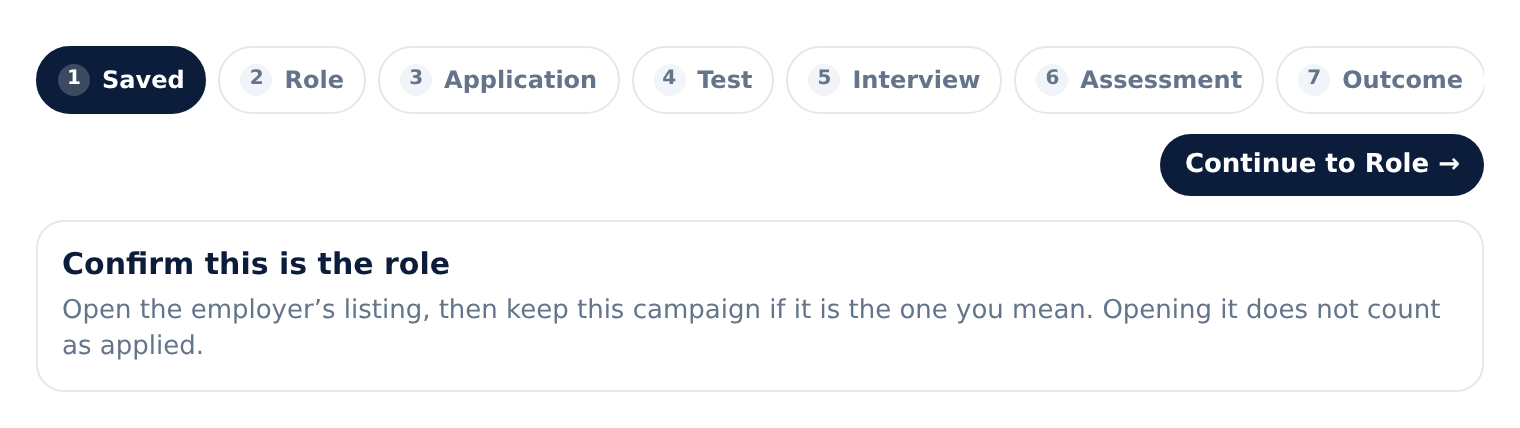
The stage line on every campaign is Saved, Role, Application, Test, Interview, Assessment, then Outcome. Finish the step you are on, or mark it not required, before you move on. Later stages stay visible, but they do not log until the earlier one is done.
1. Save the role from Radar
- Open Radar and find the listing. Read the title, office, start and whether the window is open.
- Press Save to my applications. That creates the campaign. It does not send anything to the employer.
- Guest accounts can browse Radar. You need a Basic account before a listing can be saved.
2. Open it from My applications
- Go to My applications. The board shows every campaign, the stage it is on, and what needs doing.
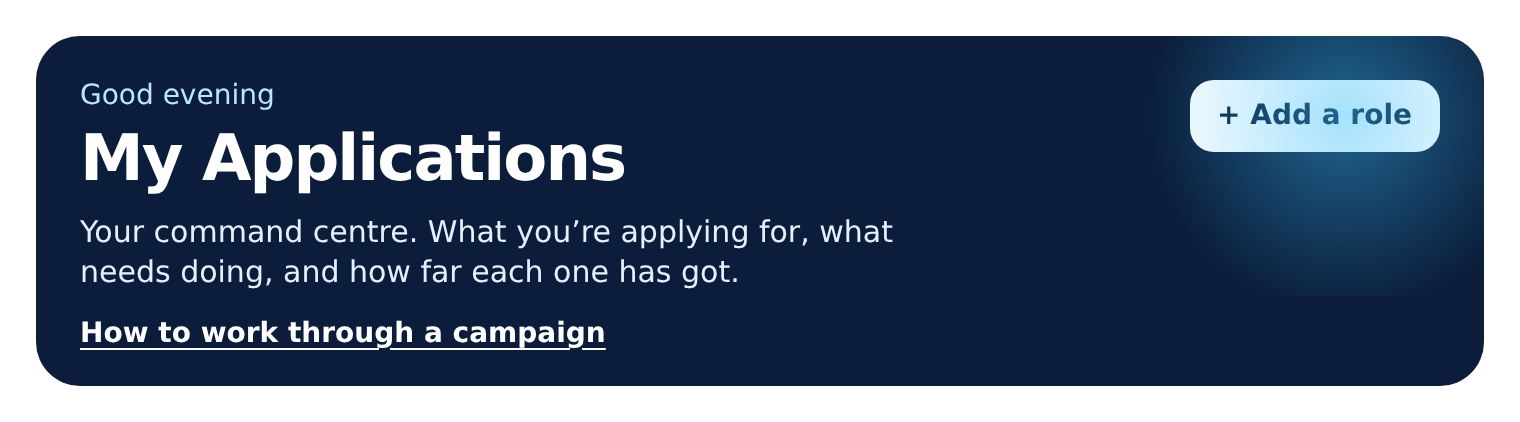
- Open the campaign. You can also add a role that is not on Radar with Add a role. Paste the employer’s own page, not a recruiter search.
- Use Need action when you want the ones that are waiting on you. Sort by next action or by deadline.
3. Saved — confirm this is the role
- Saved is stage 1. Open the employer’s listing from the campaign and check the window, the office and that the role is actually for your year.
- Keep the campaign if it is the one you mean. Opening their page still does not count as applied.
- Press Continue to Role when you are ready to paste the description.
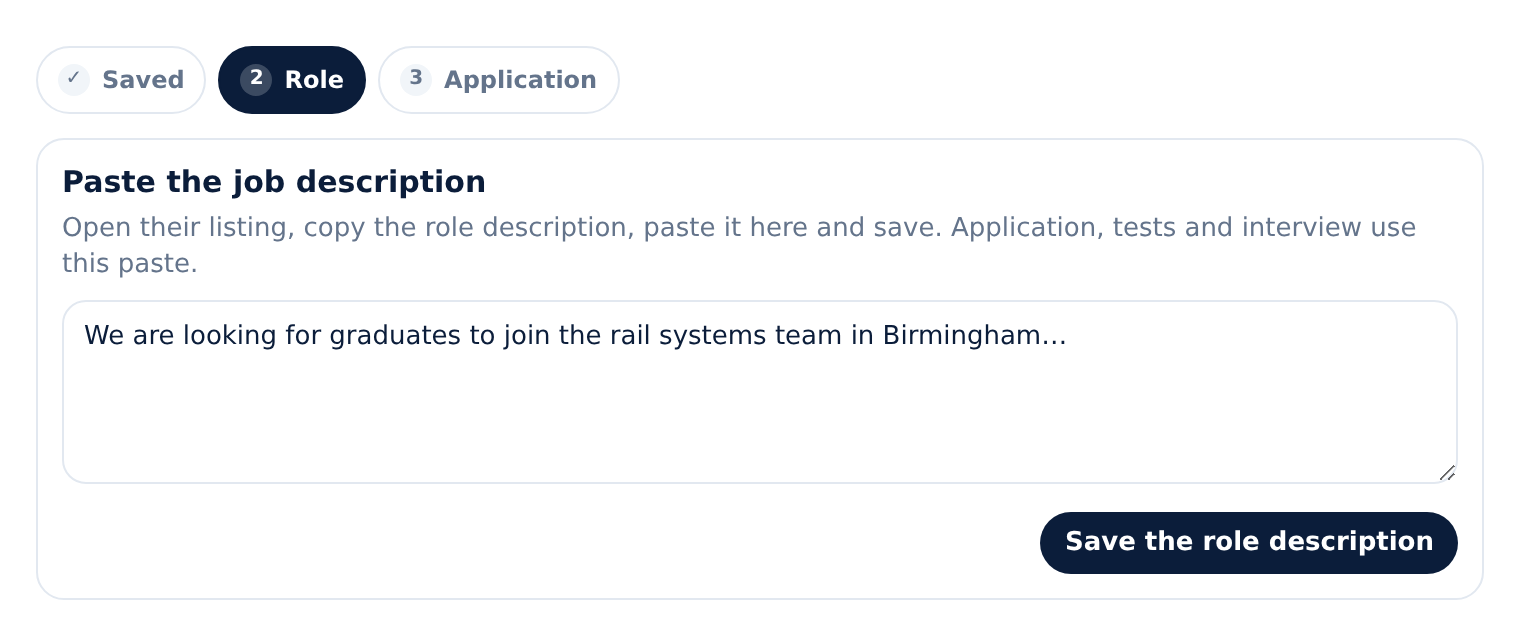
4. Role — paste the job description
- On the employer’s site, copy the job description. Paste it into Role and save it.
- Application, tests and interview use this paste. Coach checks your CV and letter against it. Nothing is invented if the description is not saved.
- Role stays incomplete until the description is saved. The button stays on Save the role description first until then.
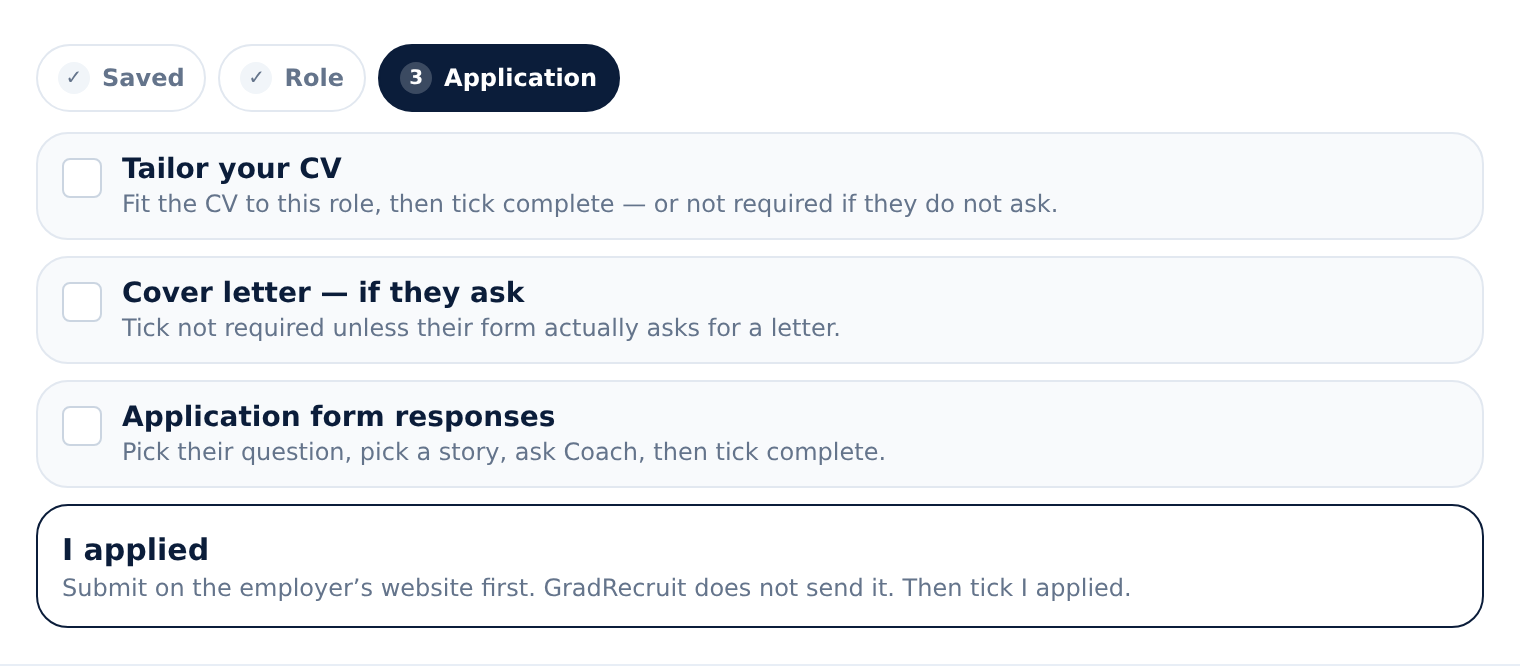
5. Application — CV, letter, form, then their site
- Tailor your CV to this role, then tick it complete. If they do not ask for a CV, tick not required.
- Write a cover letter only if their form asks. If it does not, tick not required. Do not leave the task open.
- Application form responses: pick their question, pick one of your stories, and ask Coach to draft the answer. Edit it until it sounds like you, then tick complete. If the first form is screening only, tick not required.
- Open the employer’s website, check the boxes, and press Submit there. Come back and tick I applied. GradRecruit does not submit it. Ticking I applied before you have sent the form does not send it either.
6. Test, interview and assessment
- These stages show on the line for every campaign. Mark one not required when that employer does not use it.
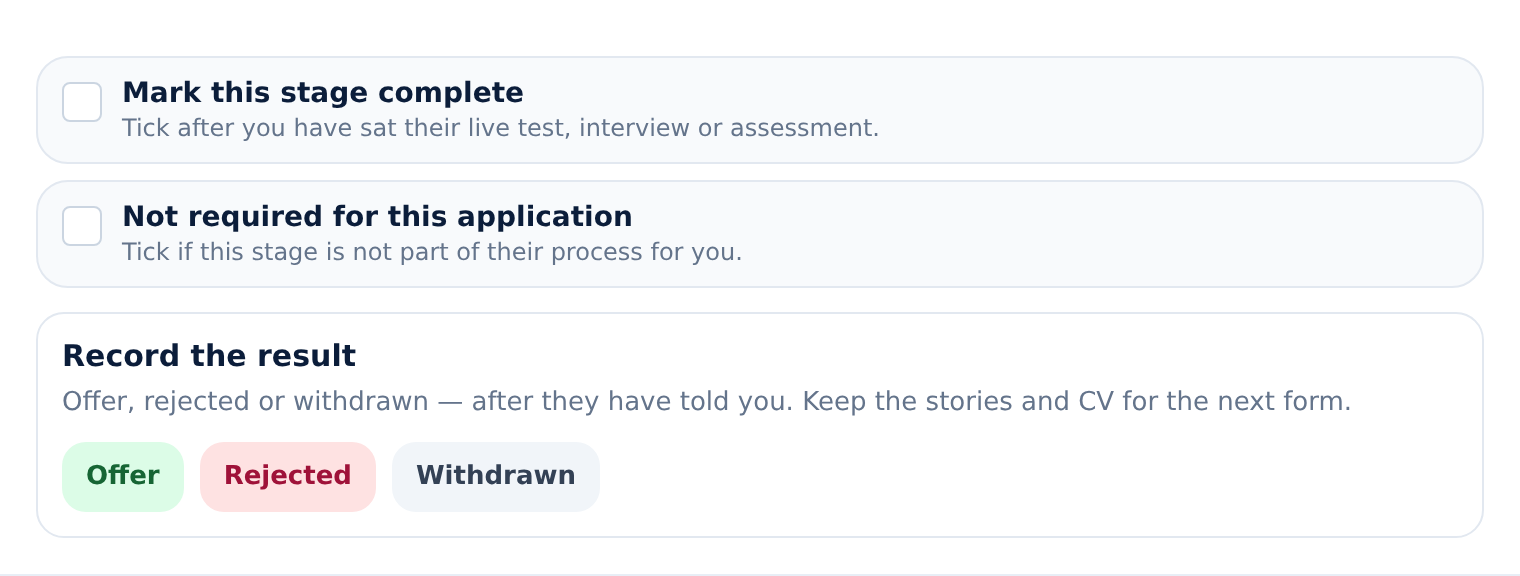
- Test: practise a timed set that matches the paper they named. Tick complete only after you have sat their live test.
- Interview: record one practice answer here first, with one story and one number. Tick complete after their live interview, or not required if they skipped it.
- Assessment: take three numbered stories into the day they published. Tick complete after you sat it, or not required if they did not invite you.
- A practice set does not log the stage. You still mark it yourself.
7. Outcome — record what they decided
- Log I applied on Application before an outcome can be recorded.
- When you hear, mark offer, rejected or withdrawn. The campaign stays so you can reuse the work.
- Keep the stories and the CV. Change the last lines for the next employer. Do not paste the same close on the next form.